

Where to connect
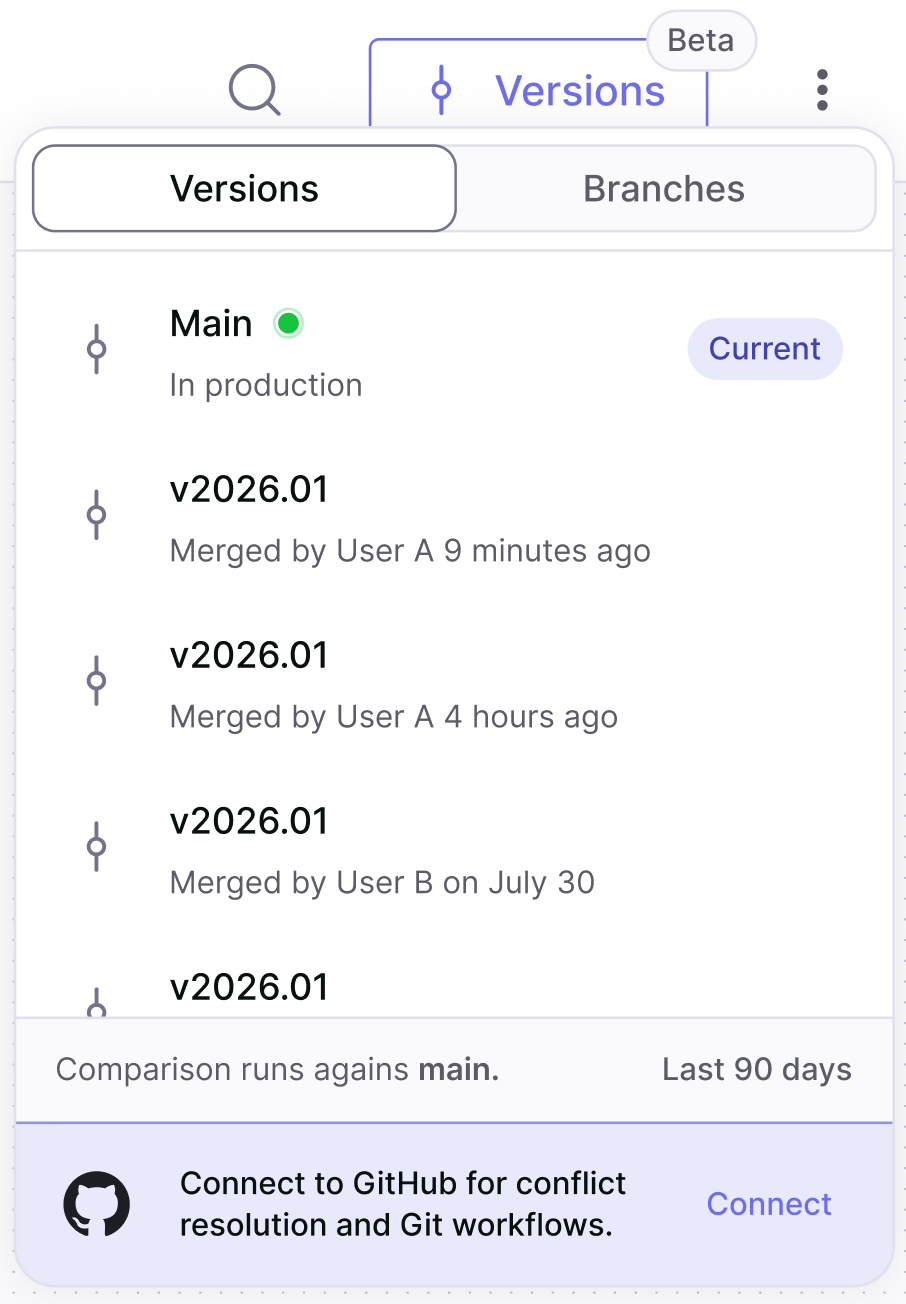
You can start the connection from either place:- The Versions menu on the Context Graph page.
- The Integrations screen.
Setup
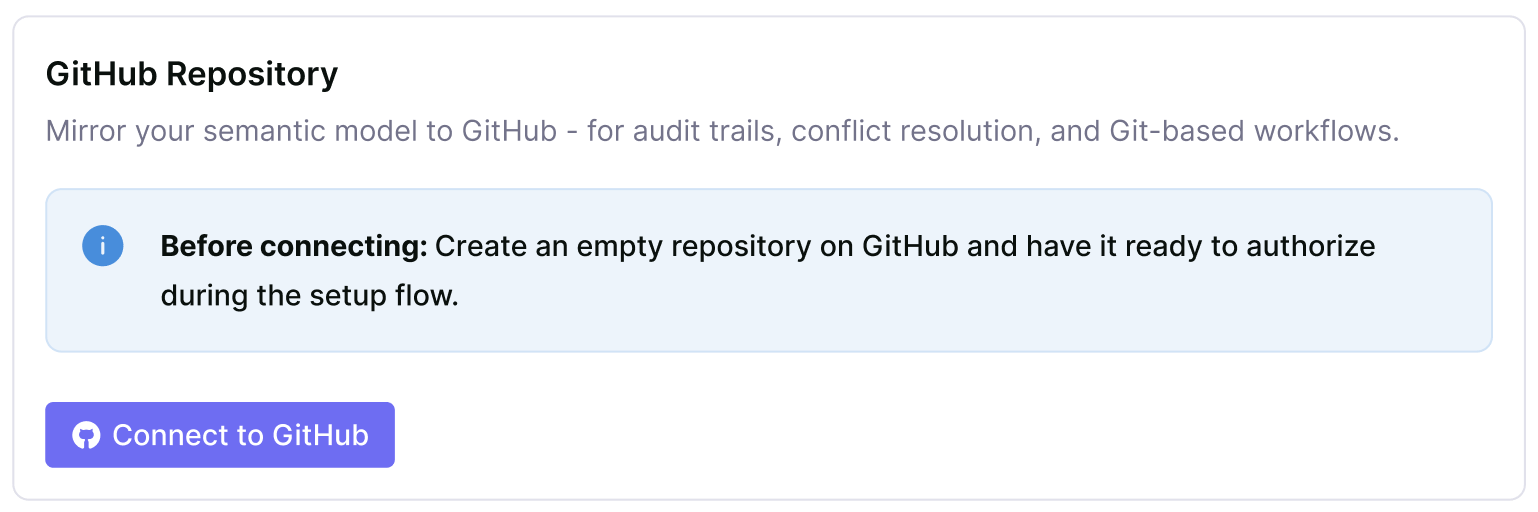
Before you start, create an empty repository on GitHub and have it ready to authorize during the setup flow.
1
Start the OAuth flow
Click Connect to GitHub in the GitHub integration card. You’re redirected to GitHub in a new tab.
2
Select a repository on GitHub
Choose the repository you want Jedify to use.
3
Grant access
Click Update access. GitHub redirects you back to Jedify, and the card reads GitHub App installed. Select a repository to connect. Pick your repository from the picker.
4
Confirm the connection
The card now reads Connected repository: {name}, alongside a Disconnect button.