

Before you start
- Your workspace is connected to Jedify. See Installation.
- Your Slack email matches your Jedify user. Jedify uses it to know who is asking.
- If your workspace connected Jedify before Slackbot support, an admin reconnects once: in Integrations, click Connect to Slack again and approve the new permission.
Turn on Jedify in Slackbot
- Open Slackbot.
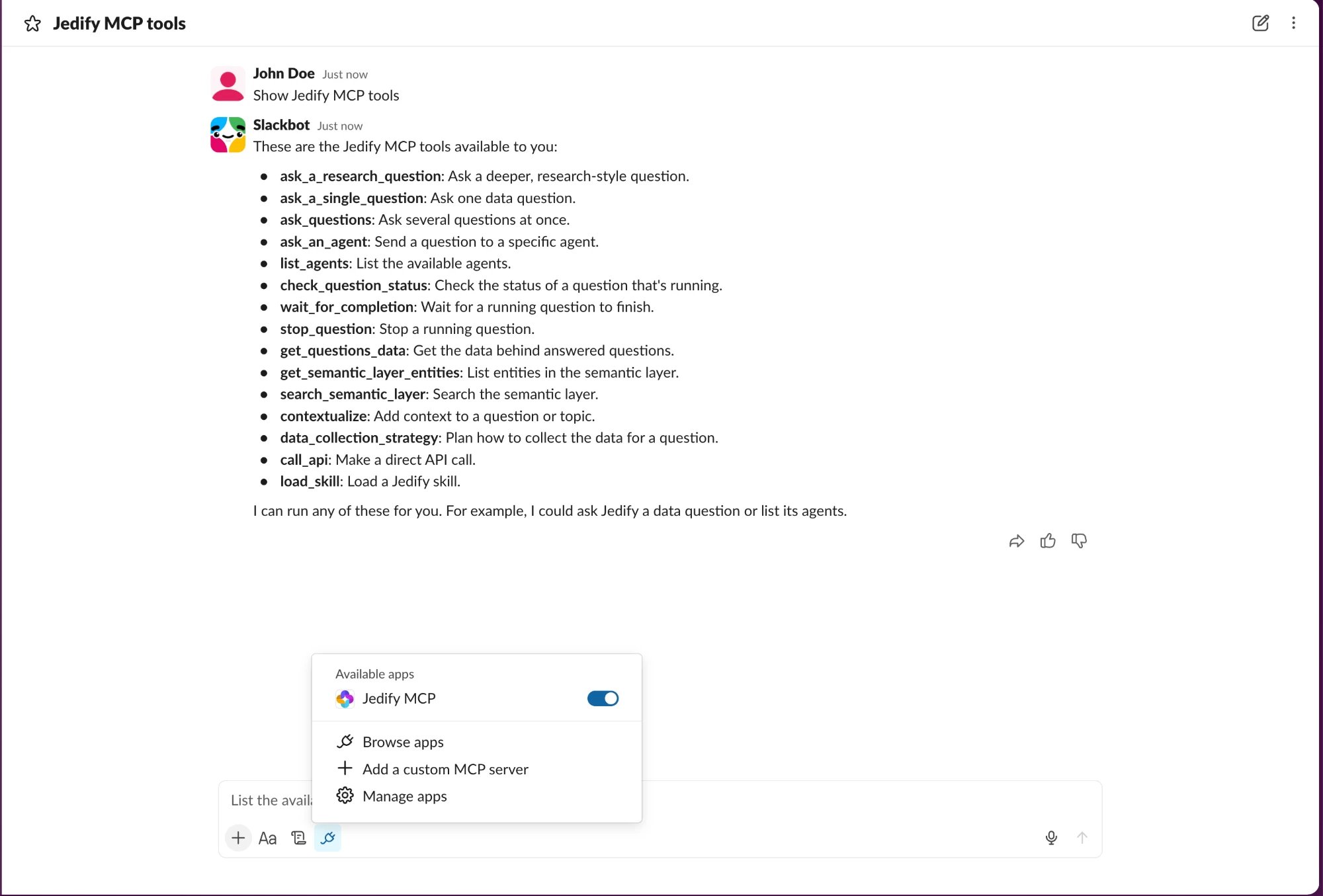
- In the message box, click the apps button.
- Under Available apps, turn on Jedify MCP.
What was revenue last month by region?
What Slackbot can do with Jedify
Slackbot can:- Ask Jedify a data question, several questions at once, or a deeper research question
- Ask one of your Jedify agents, or list the agents you can use
- Search your semantic layer and list its entities
- Check on a question that is still running, or stop it
Show Jedify MCP tools.
Permissions
Slackbot answers with your own Jedify user and data permissions, the same as when you ask Jedify directly. It never sees data your Jedify user can’t access.Slackbot or @Jedify?
Troubleshooting
- “Jedify could not match your Slack account to a Jedify user”: check that your workspace is connected to Jedify and that your Slack email matches your Jedify user.
- Jedify MCP is not under Available apps: your workspace may have connected before Slackbot support. Ask an admin to reconnect from Integrations.
- An answer takes a while: questions usually take longer than a minute. Slackbot keeps checking until the answer is ready.
- “Your Jedify user is disabled” or “Your Jedify account is disabled”: contact your Jedify admin.