

Getting Started
Once the extension is installed, open any dashboard with the Jedify Chat tile and type your question in the input box. Jedify automatically collects context from the dashboard you’re viewing — including active filters, tile queries, SQL, and live data — so your questions are answered in the context of what’s on screen.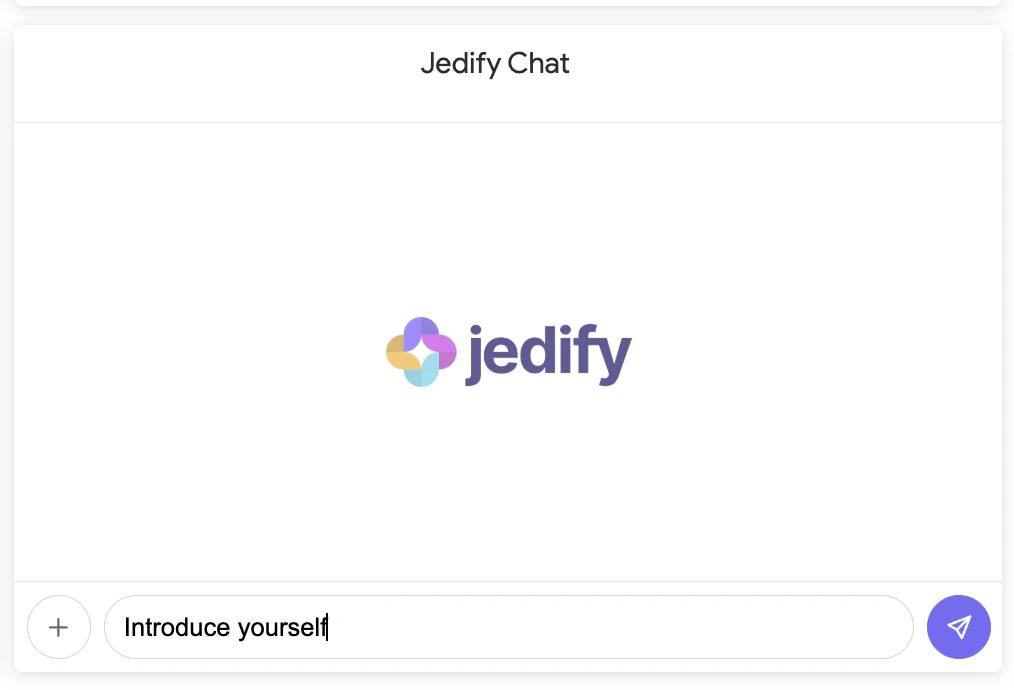
What You Can Ask
Ask the same questions you would in the Jedify platform:- Data questions: “What’s our revenue this quarter?”
- Dashboard-specific: “Why is the churn rate higher in the West region?” (Jedify sees the dashboard filters and data)
- Deep analysis: “Compare conversion rates across all segments and explain the trends”
- Follow-ups: Ask follow-up questions in the same session — Jedify remembers the conversation
Example Queries
- “Summarize the key takeaways from this dashboard”
- “What’s driving the spike in the revenue chart?”
- “Break down the top 10 accounts by ARR”
- “Are there any anomalies in last month’s data?”
How It Works
1
You ask a question
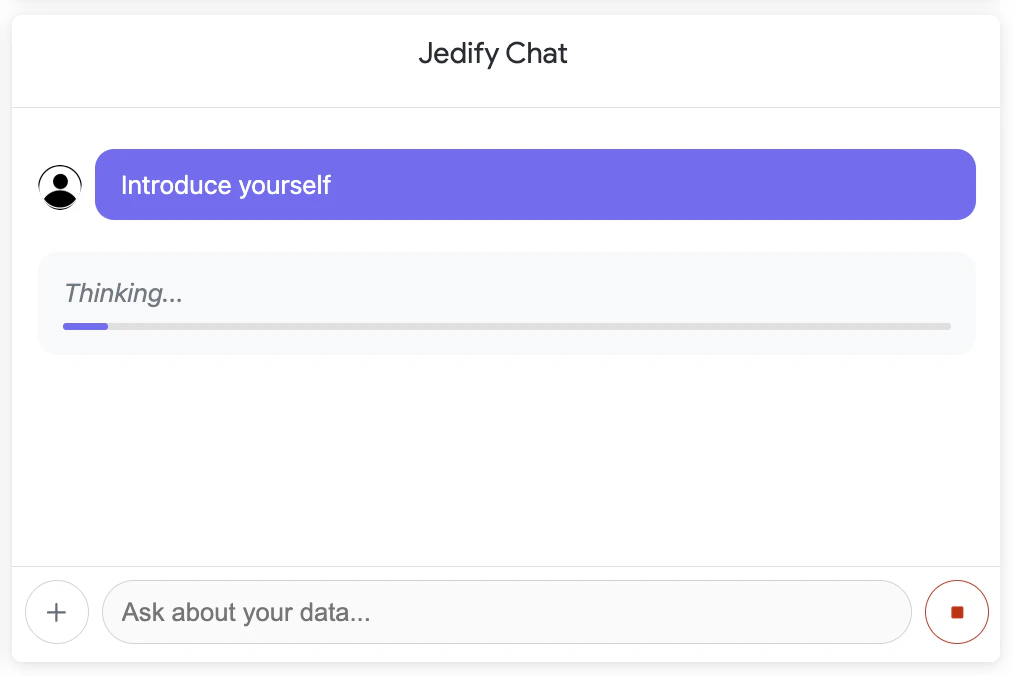
Type your question in the chat input. The dashboard context (filters, queries, data) is automatically attached.
2
Research begins
Jedify’s Research Agent starts a multi-step investigation. You’ll see a progress indicator with live activity labels showing what the agent is doing.
3
Answer streams in
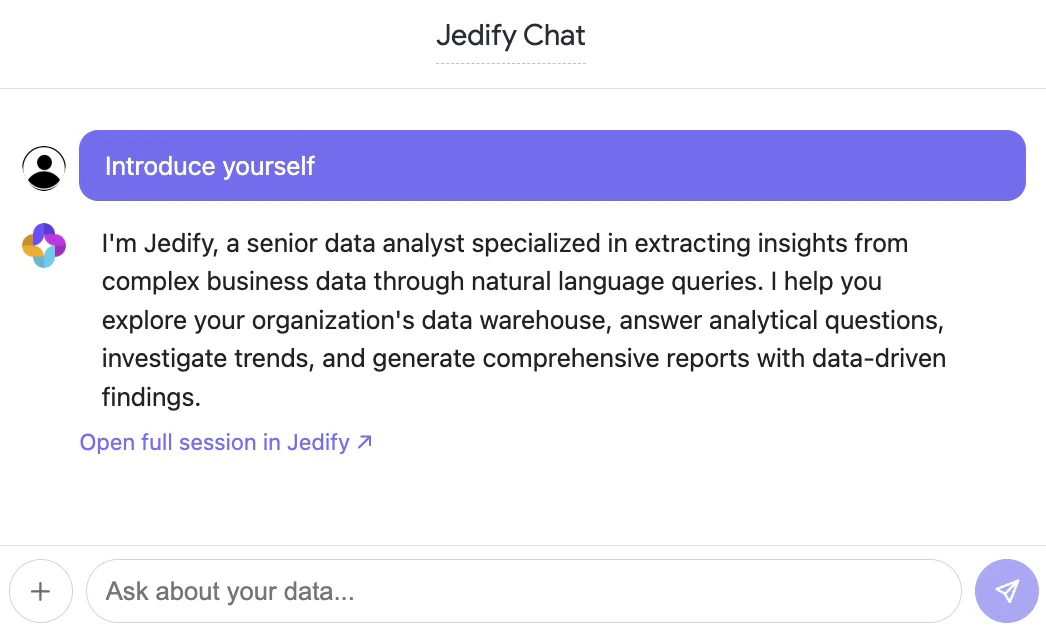
When the research completes, the answer streams into the chat with full markdown formatting — including tables, lists, and structured insights.
4
Share or continue
Each answer includes a link to open the full research session in Jedify. You can also ask follow-up questions in the same session.
Features
Dashboard Context Awareness
Every question you ask is enriched with:
This means you can ask questions like “Why is the revenue lower in Q3?” and Jedify understands which revenue tile, which filters, and what data you’re looking at.
Session Persistence
- Your chat history is preserved across page reloads
- Each dashboard has its own independent conversation
- Click + to start a fresh session at any time