

- The Jedify connector in Claude — nothing to install or configure.
- A local client with a JSON config (Claude Desktop, Cursor, Claude Code) — for clients without a Jedify connector, or to authenticate with an API key instead of signing in.
- A hosted agent or app builder — the server URL and an API key.
If your organization’s Jedify is hosted in the EU, use
be-eu.jedify.com wherever this page says be.jedify.com.Claude connector
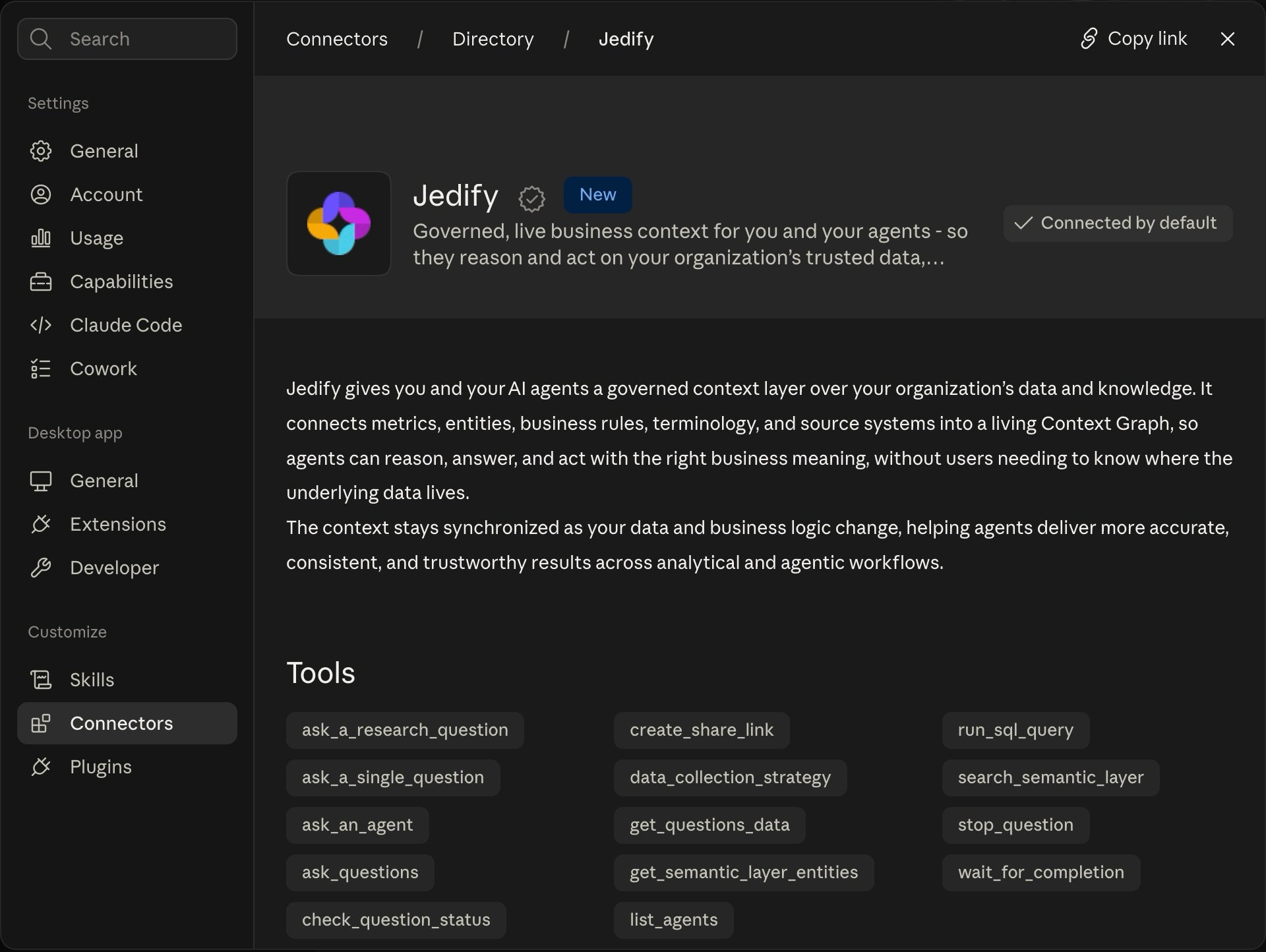
Jedify is a connector in Claude — nothing to install or configure. Connect it and sign in.1
Open the Jedify connector
Go to claude.ai/directory/jedify, or open Settings → Connectors in Claude and search for Jedify.
2
Connect and sign in
Click Connect. Your organization’s Jedify login opens; sign in and return to Claude. Sessions refresh automatically — see Authentication.
/mcp to see it).
Already running
@jedify/mcp-auth? You can remove that entry from your client’s MCP configuration and use the connector instead — the connector serves the same tools your role allows.Local clients (JSON config)
Use a local client configuration in a client that has no Jedify connector, or when you want to authenticate with an API key instead of signing in. It runs the@jedify/mcp-auth proxy in Claude Desktop, Cursor, or Claude Code (requires Node.js 18+):
Configured
REMOTE_MCP_URL with ?mode=editor or ?mode=builder before? You can drop it — your role now decides. Keep it only to deliberately restrict that client to one mode, as below.Restricting the proxy to one mode
The proxy talks to the URL inREMOTE_MCP_URL, and a ?mode= on it narrows the client to a single package — handy for an agent you want scoped to one job, or to keep a shared machine on Asker tools:
?mode=asker, ?mode=editor, or ?mode=builder. Note the path: the proxy talks to /mcp/message, not /mcp. You can keep several such blocks side by side under different server names.
Config file location
- Claude Desktop
- Cursor
- Claude Code
Settings → Developer → Edit Config, or edit directly:
- macOS —
~/Library/Application Support/Claude/claude_desktop_config.json - Windows —
%APPDATA%\Claude\claude_desktop_config.json
Authenticate with an API key
To skip the browser login — on a headless machine, a shared environment, or a CI setup — addJEDIFY_API_KEY to the env block. When it’s present, the proxy authenticates every request with the key instead of prompting you to sign in:
Create the key in Jedify under Settings → API Keys. It is bound to you and carries your identity and permissions, so no email or sign-in is needed. If
JEDIFY_API_KEY is unset, the proxy falls back to the browser login. Requires @jedify/mcp-auth v1.1.0 or later.make_edit and get_graph; Builder tools include create_semantic_function and list_semantic_functions.
Hosted agents and other MCP clients
For platforms that connect to an MCP server with a URL and a token — ChatGPT, no-code app builders, or any MCP client outside Claude — provide the server URL and an API key in the platform’s MCP settings:
To see what your agent got, ask it “Which Jedify tools do you have?” — Editor tools include
make_edit and get_graph; Builder tools include create_semantic_function and list_semantic_functions.
Next steps
Modes
Asker, Editor, or Builder — and which ones your role gets.
Authentication
Sign in or use an API key.
Asker examples
What to ask.
Builder mode
Build dashboards.