

Prerequisites
Admin permission required — Only Looker Admins can install extensions and configure user attributes.
- A Looker instance with the Extension Framework enabled
- A Jedify account with an API key (generated from Jedify Settings > API Keys)
Step 1: Create the User Attribute
The extension reads your Jedify API key from a Looker user attribute. This allows admins to configure it once for all users.- Go to Admin > Users > User Attributes
- Click Create User Attribute
- Fill in:
- Click Save

Step 2: Create the LookML Project
- Go to Develop > Projects
- Click New Model
- Choose a connection (doesn’t matter which one) > Create a new LookML Project with this exact name
jedify_extension - Select at least a single Schema (we don’t really need. It’s just mandatory when creating a new project)
- Click Next until requested to enter model name and enter
jedify_extension> Complete and view model - In the project file browser click the + > Create project manifest
manifest.lkml
- Click Save Changes, then Validate LookML, then Commit Changes & Deploy

Step 3: Add Jedify to a Dashboard
- Open any Looker dashboard and enter edit mode
- Click + Add > Extension > And add the Jedify extension tile from the right side panel.
- Drag it onto the dashboard and resize as needed
- Click Save
Step 4: Access the Standalone App
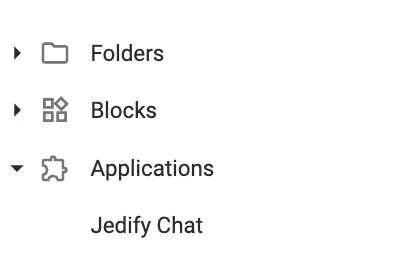
After installation, Jedify also appears in the Looker navigation:- Click the Applications menu (or navigate via the hamburger menu)
- Select Jedify Chat
User Requirements
- Jedify account required: The API key must be bound to a Jedify user. All queries run under that user’s permissions.
- No individual login needed: Users interact through the shared API key configured in the user attribute. They don’t need individual Jedify accounts to ask questions from Looker.