

What a skill contains
The agent reads each skill’s description to decide whether it fits your request. When it does, the agent loads the skill before answering and treats it as its top priority for the rest of the conversation.
Create a skill
From a conversation
- In Agent mode, work with the agent until you get the answer you want.
- Ask: “Save this as a skill”.
From Settings (admins)
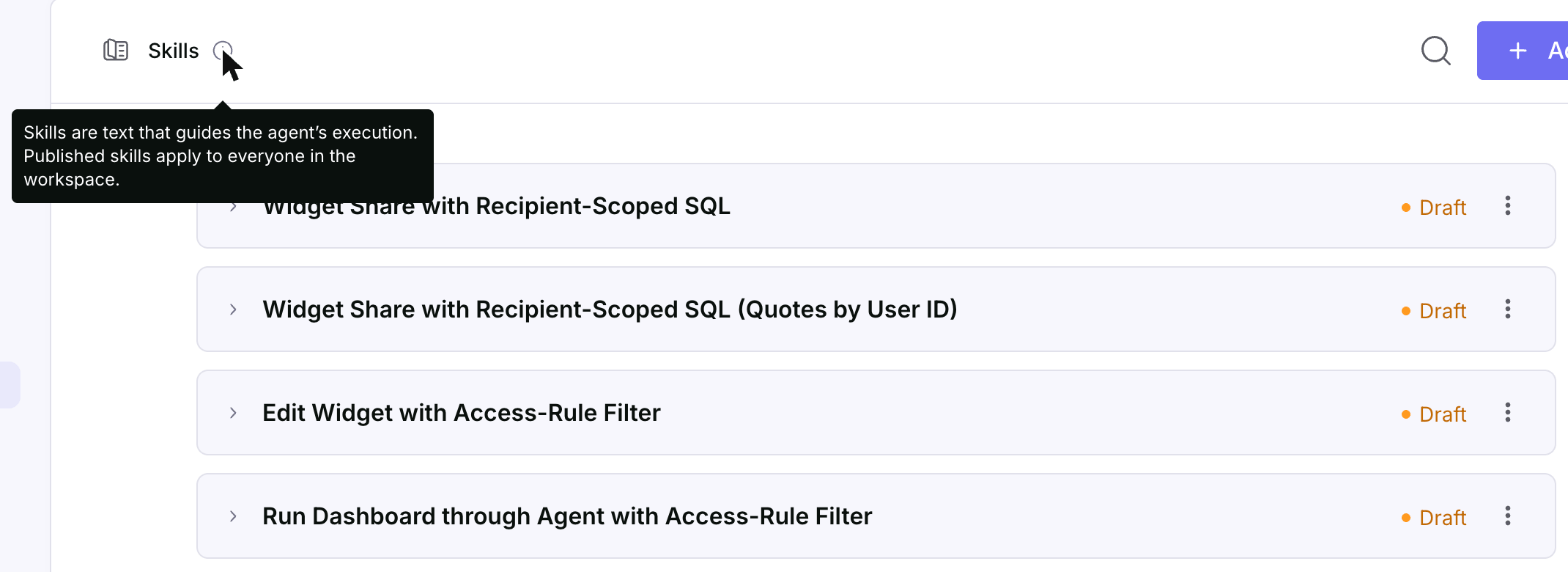
- Go to Settings > Skills.
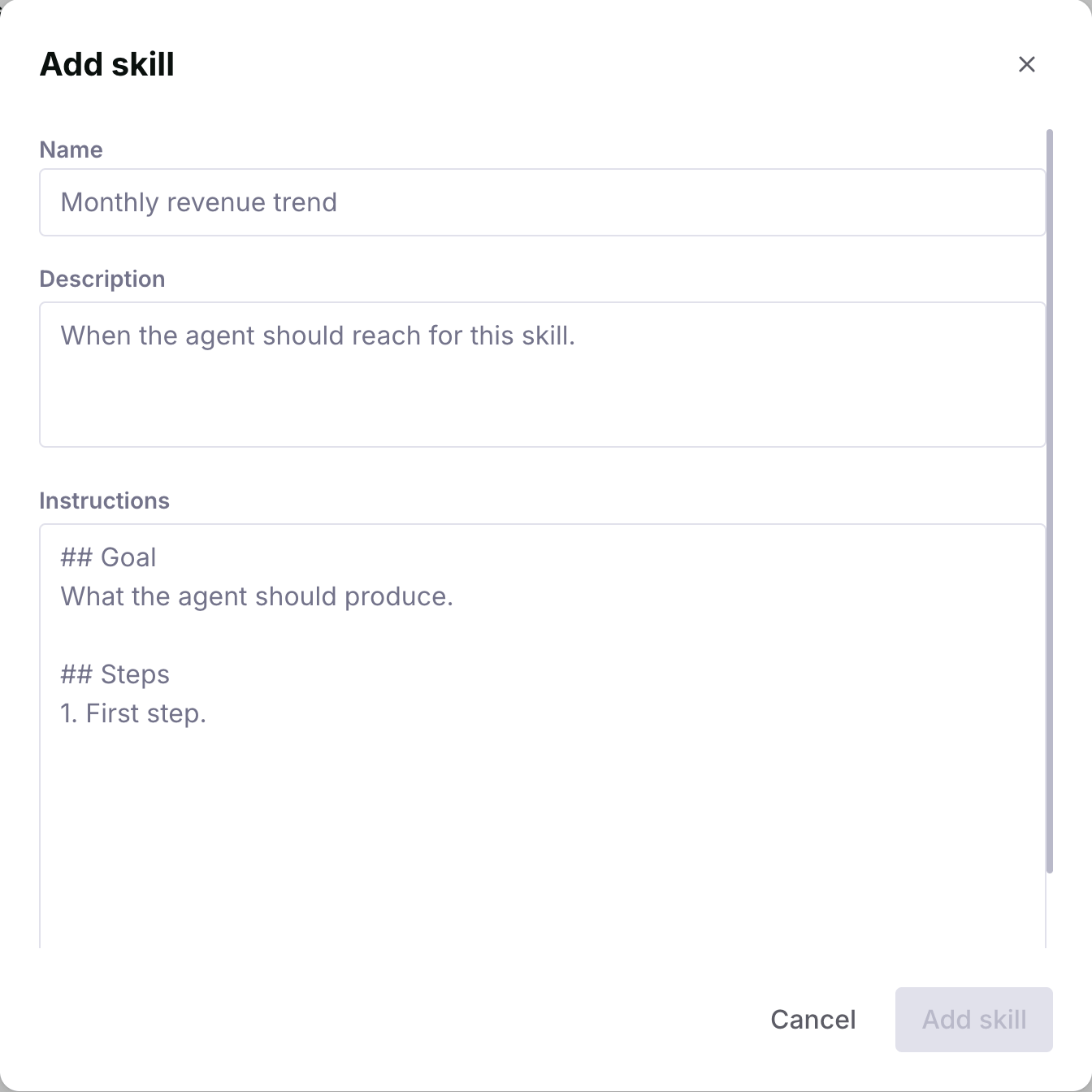
- Click Add skill.
- Fill in Name, Description, and Instructions, then save.
Draft and published skills
Every new skill starts as a draft.
When your draft works the way you want, publish it:
- In Settings > Skills, open the skill’s menu and select Publish, or
- Ask the agent: “Publish the Monthly revenue trend skill”.
Only the person who created a skill can edit, publish, unpublish, or delete it.

Use a skill
- Automatically. Ask your question as usual. If it matches a skill, the agent uses it.
- Pick it yourself. Type
/in the Agent mode prompt box and choose a skill from the list. You can add up to five skills to one message. - By name. Ask: “Use the Monthly revenue trend skill”.
Manage skills
Go to Settings > Skills to see all the skills you can use. From there you can:- Search your skills.
- See each skill’s status and how many times it was used.
- Edit, publish, unpublish, or delete the skills you created.
Use skills from Claude and other AI tools
When you connect to Jedify through MCP, your AI tool can see the skills available to you and load one when your request matches. Create and publish skills in Jedify.Tips for good skills
- Say when in the description. The agent uses the description to decide when to apply the skill. Start with “Use when…”.
- Keep each skill to one job. Two small skills work better than one skill that covers everything.
- Be specific. Name the metric, the filters, the time range, and the chart you expect.
- Test before you publish. Try the draft on a few real questions, then publish it.