> ## Documentation Index
> Fetch the complete documentation index at: https://docs.jedify.com/llms.txt
> Use this file to discover all available pages before exploring further.
# Installation
# Step 1: Connect to Slack
Admin permission required - Only Jedify Admins and Slack admins can install and authorize the Slack app.
1. From your Jedify account, navigate to the Integrations section
2. Click on “Connect to Slack”
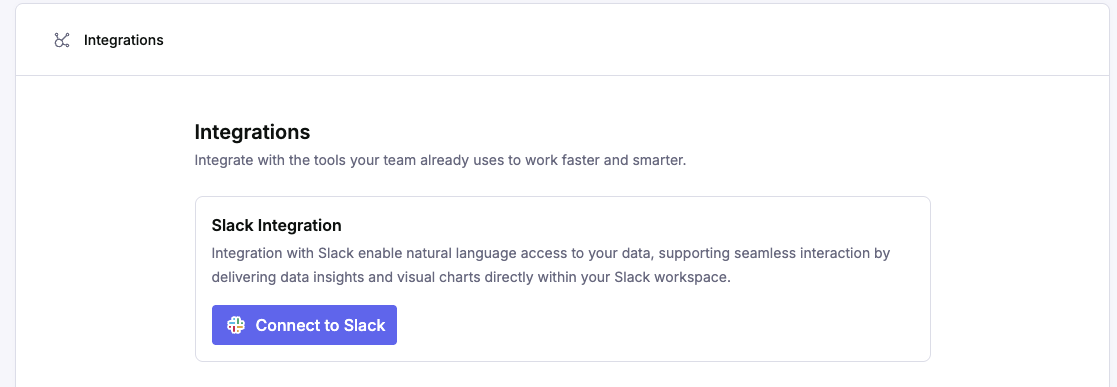 1. You’ll be redirected to Slack to authorize the integration
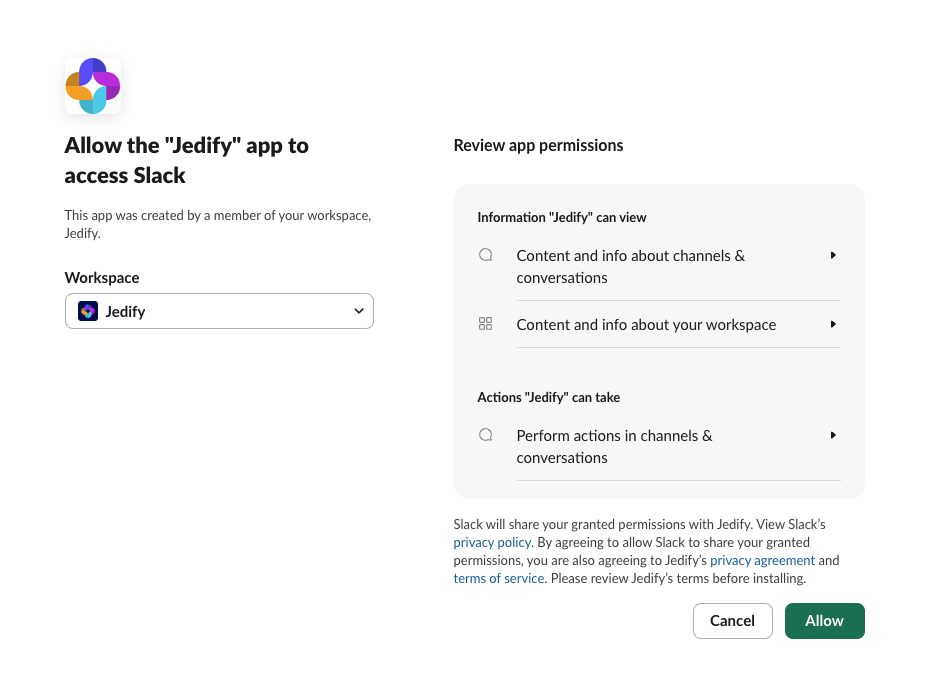 1. Select your workspace from the dropdown menu
2. Click “Allow” to grant the necessary permissions for Jedify to operate in your workspace
# Step 2: Customize Settings
To ensure the best balance between speed, depth, and security, you can toggle the following modes:
1. Select your workspace from the dropdown menu
2. Click “Allow” to grant the necessary permissions for Jedify to operate in your workspace
# Step 2: Customize Settings
To ensure the best balance between speed, depth, and security, you can toggle the following modes:
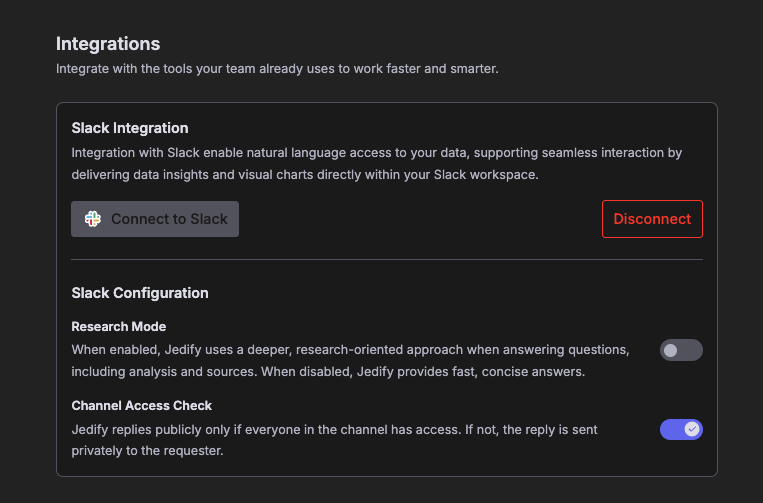 ### Research Mode:
**When ON:** Jedify performs a deeper, multi-step analysis of your data, citing specific sources and providing a comprehensive breakdown. Ideal for complex strategic questions.
**When OFF:** Use this for quick, "at-a-glance" answers. It’s optimized for speed and concise data points.
### Channel Access Check:
**When ON:** If even one person in the channel lacks permission, Jedify will automatically send the response as a private message to the requester, ensuring your data remains secure. This ensures that non-Jedify users will not have visibility to responses provided by Jedify.
**When OFF:** There are no restrictions on viewing Jedify's responses, as long as the user who asked the question has permissions to Jedify.
# Step 3: Start Using Jedify
After installation, Jedify will appear in your workspace: - Find Jedify in your Apps section (left sidebar)
The app is immediately ready to use
All your existing data connections from the main platform are available
# User Requirements
## Individual Access
* **Jedify account required:** To interact with Jedify through Slack, you must have an active Jedify user account
* **Email matching:** Your Slack account email must match your Jedify account email
* Without a matching Jedify account, you cannot ask questions or receive responses
## Data Permissions
* Least privileged access: When multiple users are in a conversation, responses are based on the most restrictive data permissions
* This ensures data security and prevents unauthorized access to sensitive information
### Research Mode:
**When ON:** Jedify performs a deeper, multi-step analysis of your data, citing specific sources and providing a comprehensive breakdown. Ideal for complex strategic questions.
**When OFF:** Use this for quick, "at-a-glance" answers. It’s optimized for speed and concise data points.
### Channel Access Check:
**When ON:** If even one person in the channel lacks permission, Jedify will automatically send the response as a private message to the requester, ensuring your data remains secure. This ensures that non-Jedify users will not have visibility to responses provided by Jedify.
**When OFF:** There are no restrictions on viewing Jedify's responses, as long as the user who asked the question has permissions to Jedify.
# Step 3: Start Using Jedify
After installation, Jedify will appear in your workspace: - Find Jedify in your Apps section (left sidebar)
The app is immediately ready to use
All your existing data connections from the main platform are available
# User Requirements
## Individual Access
* **Jedify account required:** To interact with Jedify through Slack, you must have an active Jedify user account
* **Email matching:** Your Slack account email must match your Jedify account email
* Without a matching Jedify account, you cannot ask questions or receive responses
## Data Permissions
* Least privileged access: When multiple users are in a conversation, responses are based on the most restrictive data permissions
* This ensures data security and prevents unauthorized access to sensitive information